This WordPress website will house posts by you and others in GSS 206. To add posts to the blog you might first have to log into the site using the ‘Log In’ link in the sidebar. (If you are already logged into some other Princeton service such Canvas, you might not need to log in again). Log in with your usual Princeton netid and password.
Once you have logged in, you should be taken to the Dashboard, the back-end interface for composing posts. If not, look for the black bar across the top of the screen, place you cursor over the title of the blog (Spies of Empire/Empire of Spies) and select Dashboard from the menu.
Adding a Post
- Enter the Dashboard, and click Posts in the left-hand menu.
- Click New Post.
- Add a title for your post and enter the bio in the main text editor window.
- You can add images and other media to your posts by clicking the Add Media button just above the editor. This will open the Media Library which allows you to upload an image or to add an image from the collective library of media on the site. After uploading or selecting an image, you will be presented with an Insert into Post button to add the image into your post.
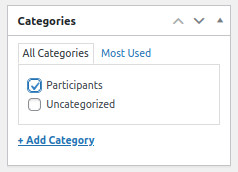 Your post should also be categorized. In the right-hand sidebar look for a section labeled Categories. Check the checkbox(es) next to categories that apply to your post.
- When you are finished, click the Publish (or Update) button. If you would like to save and come back to this later, save the post as a Draft by clicking the Save Draft button in the Publish section in the right-hand sidebar.
After you have Saved/Published your post, a link to the post will appear under the title on the editing screen. You can also return to the front of the blog by clicking the title in the black bar at the top of the screen. Your post should appear at the top of the homepage (chronological list of posts), but also by clicking any of the applied categories in the sidebar, or by clicking your name in the Authors list.